'/%3e%3cpath%20fill-rule='evenodd'%20clip-rule='evenodd'%20d='M18%2080.9996C25.515%2086.6471%2034.875%2089.9996%2045%2089.9996C55.125%2089.9996%2064.485%2086.6471%2072%2080.9996H18Z'%20fill='%23FF2D55'/%3e%3cpath%20fill-rule='evenodd'%20clip-rule='evenodd'%20d='M9.00008%2071.9996C11.5651%2075.3971%2014.6026%2078.4346%2018.0001%2080.9996H72C75.3975%2078.4346%2078.435%2075.3971%2081%2071.9996H9.00008Z'%20fill='%23FFA25A'/%3e%3cpath%20fill-rule='evenodd'%20clip-rule='evenodd'%20d='M60.3675%2062.9997H3.75757C5.15257%2066.2172%206.93007%2069.2322%209.00006%2071.9997H60.39V62.9997H60.3675Z'%20fill='%23FFC95B'/%3e%3cpath%20fill-rule='evenodd'%20clip-rule='evenodd'%20d='M31.8826%2029.2496V62.9996H60.0075L31.8826%2029.2496Z'%20fill='url(%23paint1_linear_1_49380)'/%3e%3cpath%20fill-rule='evenodd'%20clip-rule='evenodd'%20d='M3.75757%2062.9997H31.8826V29.2497L3.75757%2062.9997Z'%20fill='white'/%3e%3cpath%20fill-rule='evenodd'%20clip-rule='evenodd'%20d='M60.3675%2047.25V72H81L60.3675%2047.25Z'%20fill='url(%23paint2_linear_1_49380)'/%3e%3cpath%20fill-rule='evenodd'%20clip-rule='evenodd'%20d='M39.7574%2072H60.3674V47.25L39.7574%2072Z'%20fill='white'/%3e%3cpath%20fill-rule='evenodd'%20clip-rule='evenodd'%20d='M60.3675%2040.4997C66.5807%2040.4997%2071.6175%2035.4629%2071.6175%2029.2497C71.6175%2023.0365%2066.5807%2017.9997%2060.3675%2017.9997C54.1543%2017.9997%2049.1175%2023.0365%2049.1175%2029.2497C49.1175%2035.4629%2054.1543%2040.4997%2060.3675%2040.4997Z'%20fill='%23FFC95B'/%3e%3cpath%20fill-rule='evenodd'%20clip-rule='evenodd'%20d='M31.8824%2022.4997C34.989%2022.4997%2037.5074%2019.9813%2037.5074%2016.8747C37.5074%2013.7681%2034.989%2011.2497%2031.8824%2011.2497C28.7758%2011.2497%2026.2574%2013.7681%2026.2574%2016.8747C26.2574%2019.9813%2028.7758%2022.4997%2031.8824%2022.4997Z'%20fill='%23FFC95B'/%3e%3cdefs%3e%3clinearGradient%20id='paint0_linear_1_49380'%20x1='45'%20y1='-18.6396'%20x2='-18.6396'%20y2='45'%20gradientUnits='userSpaceOnUse'%3e%3cstop%20stop-color='%23FF2D55'/%3e%3cstop%20offset='1'%20stop-color='%23FFBC5B'/%3e%3c/linearGradient%3e%3clinearGradient%20id='paint1_linear_1_49380'%20x1='31.8731'%20y1='29.2497'%20x2='31.8731'%20y2='62.9996'%20gradientUnits='userSpaceOnUse'%3e%3cstop%20stop-color='%23A524B3'/%3e%3cstop%20offset='1'%20stop-color='%23FF2D55'/%3e%3c/linearGradient%3e%3clinearGradient%20id='paint2_linear_1_49380'%20x1='60.3605'%20y1='47.25'%20x2='60.3605'%20y2='72'%20gradientUnits='userSpaceOnUse'%3e%3cstop%20stop-color='%23A524B3'/%3e%3cstop%20offset='1'%20stop-color='%23FF2D55'/%3e%3c/linearGradient%3e%3c/defs%3e%3c/svg%3e)
Optimize Performance
>-
Mobile devices have tighter resource constraints than desktop or web. Understanding the mobile scene limits and how to preview them helps you ship a scene that runs smoothly for the widest audience.
Mobile Scene Limits
The table below shows the limits enforced when running on mobile. Reaching a soft limit triggers a warning in the performance panel; reaching a hard limit blocks the scene from loading.
| Metric | Soft Limit | Hard Limit |
|---|---|---|
| Triangles | 1,000,000 | 1,200,000 |
| Entities | 4,800 | 6,000 |
| Meshes (bodies) | 2,400 | 3,000 |
| Geometries | 1,000 | 2,000 |
| Materials | 400 | 500 |
| Textures | 400 | 500 |
| Colliders | 1,200 | 1,500 |
| Content size | 120 MB | 150 MB |
| External content | 40 MB | 50 MB |
| Memory (process RSS) | 1,638 MB | 2,048 MB |
| Draw calls | 1,000 | 2,000 |
| Performance (higher is better) | 90% | 85% |
Preview Mobile Performance
You can check your scene’s mobile performance directly from Creator Hub without deploying to a physical device.
- Open your scene in Creator Hub.
- Select Preview > Show QR Code for Mobile
- Open the Scene Limits Preview from the top right icon in your phone (monitor with statistics in red).
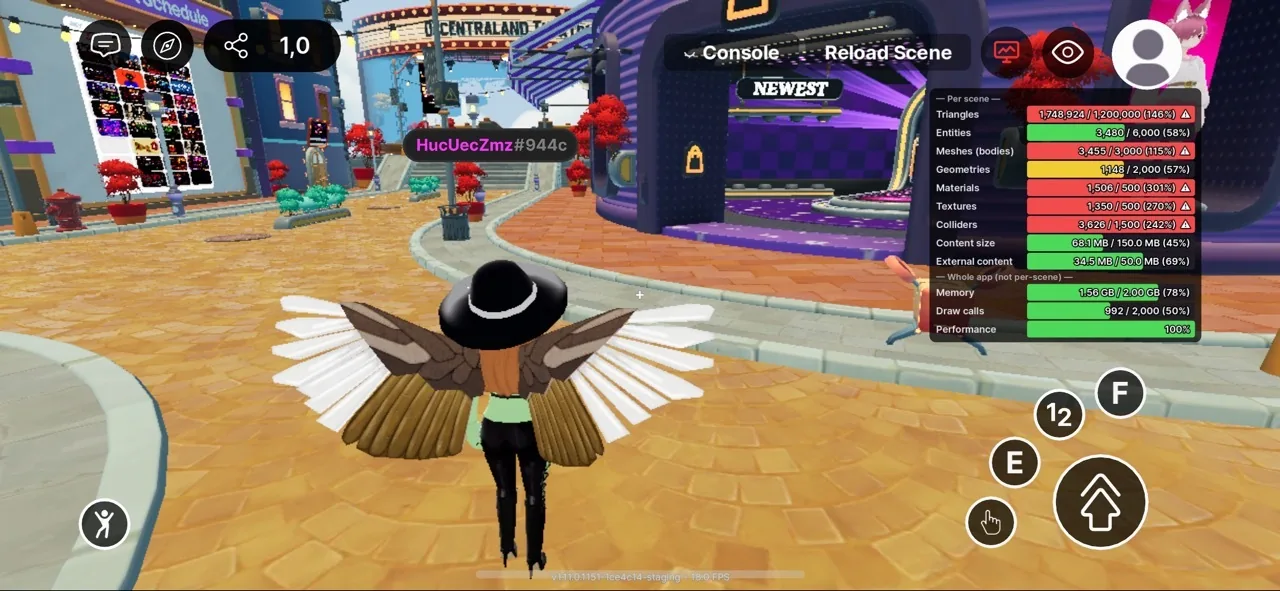
Keep Performance above 90% on High Graphics
The Performance value is a percentage of the FPS budget set by the active graphic profile. A score of 100% means the scene is hitting the full FPS target.
Always test on a mid-spec device like the Samsung Galaxy A54 and aim for a Performance score above 90% on the High graphic profile. This ensures a smooth experience for the majority of mobile players. See Hardware Requirements for reference devices.
You can change the graphic profile from In-Game Menu → Settings → Graphics → set Dynamic Graphics to Off → switch Profiles.