'/%3e%3cpath%20fill-rule='evenodd'%20clip-rule='evenodd'%20d='M18%2080.9996C25.515%2086.6471%2034.875%2089.9996%2045%2089.9996C55.125%2089.9996%2064.485%2086.6471%2072%2080.9996H18Z'%20fill='%23FF2D55'/%3e%3cpath%20fill-rule='evenodd'%20clip-rule='evenodd'%20d='M9.00008%2071.9996C11.5651%2075.3971%2014.6026%2078.4346%2018.0001%2080.9996H72C75.3975%2078.4346%2078.435%2075.3971%2081%2071.9996H9.00008Z'%20fill='%23FFA25A'/%3e%3cpath%20fill-rule='evenodd'%20clip-rule='evenodd'%20d='M60.3675%2062.9997H3.75757C5.15257%2066.2172%206.93007%2069.2322%209.00006%2071.9997H60.39V62.9997H60.3675Z'%20fill='%23FFC95B'/%3e%3cpath%20fill-rule='evenodd'%20clip-rule='evenodd'%20d='M31.8826%2029.2496V62.9996H60.0075L31.8826%2029.2496Z'%20fill='url(%23paint1_linear_1_49380)'/%3e%3cpath%20fill-rule='evenodd'%20clip-rule='evenodd'%20d='M3.75757%2062.9997H31.8826V29.2497L3.75757%2062.9997Z'%20fill='white'/%3e%3cpath%20fill-rule='evenodd'%20clip-rule='evenodd'%20d='M60.3675%2047.25V72H81L60.3675%2047.25Z'%20fill='url(%23paint2_linear_1_49380)'/%3e%3cpath%20fill-rule='evenodd'%20clip-rule='evenodd'%20d='M39.7574%2072H60.3674V47.25L39.7574%2072Z'%20fill='white'/%3e%3cpath%20fill-rule='evenodd'%20clip-rule='evenodd'%20d='M60.3675%2040.4997C66.5807%2040.4997%2071.6175%2035.4629%2071.6175%2029.2497C71.6175%2023.0365%2066.5807%2017.9997%2060.3675%2017.9997C54.1543%2017.9997%2049.1175%2023.0365%2049.1175%2029.2497C49.1175%2035.4629%2054.1543%2040.4997%2060.3675%2040.4997Z'%20fill='%23FFC95B'/%3e%3cpath%20fill-rule='evenodd'%20clip-rule='evenodd'%20d='M31.8824%2022.4997C34.989%2022.4997%2037.5074%2019.9813%2037.5074%2016.8747C37.5074%2013.7681%2034.989%2011.2497%2031.8824%2011.2497C28.7758%2011.2497%2026.2574%2013.7681%2026.2574%2016.8747C26.2574%2019.9813%2028.7758%2022.4997%2031.8824%2022.4997Z'%20fill='%23FFC95B'/%3e%3cdefs%3e%3clinearGradient%20id='paint0_linear_1_49380'%20x1='45'%20y1='-18.6396'%20x2='-18.6396'%20y2='45'%20gradientUnits='userSpaceOnUse'%3e%3cstop%20stop-color='%23FF2D55'/%3e%3cstop%20offset='1'%20stop-color='%23FFBC5B'/%3e%3c/linearGradient%3e%3clinearGradient%20id='paint1_linear_1_49380'%20x1='31.8731'%20y1='29.2497'%20x2='31.8731'%20y2='62.9996'%20gradientUnits='userSpaceOnUse'%3e%3cstop%20stop-color='%23A524B3'/%3e%3cstop%20offset='1'%20stop-color='%23FF2D55'/%3e%3c/linearGradient%3e%3clinearGradient%20id='paint2_linear_1_49380'%20x1='60.3605'%20y1='47.25'%20x2='60.3605'%20y2='72'%20gradientUnits='userSpaceOnUse'%3e%3cstop%20stop-color='%23A524B3'/%3e%3cstop%20offset='1'%20stop-color='%23FF2D55'/%3e%3c/linearGradient%3e%3c/defs%3e%3c/svg%3e)
Combine with code
Combine content created on the Scene Editor with the power of writing code.
The Creator Hub plus custom code is a very powerful combination for creating content. You can use the canvas to visually position items intuitively, and then write code that interacts with these items with complete freedom. You can even place a smart item, that has its own default behavior, and write code that reacts to when the item is activated.
For example, you can take advantage of an existing lever smart item, that already comes with its sounds and animations and states, and write code that detects when the lever is pulled to run your own custom logic.
See Reference items in code for how to fetch items by name or by tags from your code.
Editing code
You must install a code editor on your machine to edit the code of your scene. The recommended options are:
 Visual Studio Code: This is the recommended option for experienced developers.
 Cursor AI: This is a powerful code editor that is integrated with AI. It lets you pick different AI models to help you write code; a free tier is available, and more advanced models require a paid plan. This is a good option for developers who are new to Decentraland or TypeScript, or if you want to save time writing code.
📔 Note: If you are on macOS, make sure the code editor app is in the Applications directory.
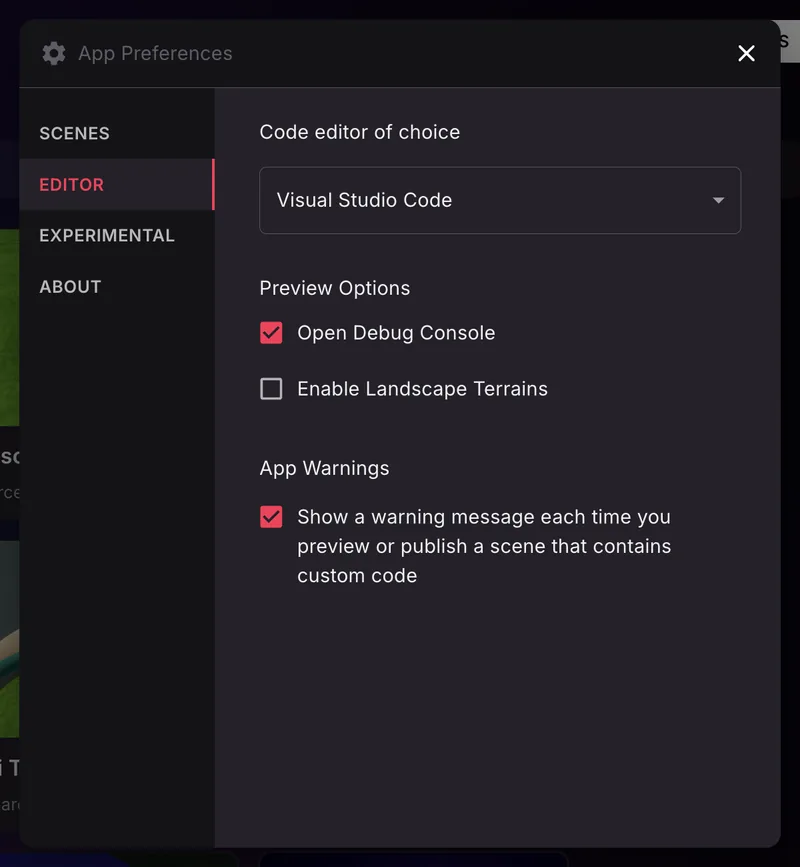
Once installed, you may need to select your Code Editor in the settings of the Creator Hub. To do this,
- Click the Creator Hub logo in the top-left corner of the screen and select Settings.
- Open the EDITOR tab.
- Under Code editor of choice, select your Code Editor. You may find your editor listed in the dropdown, or you may need to select Choose from your device... to find it.
Open a scene's code
Once you installed a code editor on your machine, and selected it in the settings of the Creator Hub, you can click the < > CODE button to open it on your scene project.
This opens a separate window with the code editor. On the left margin you can navigate the files and folder structure of your project.
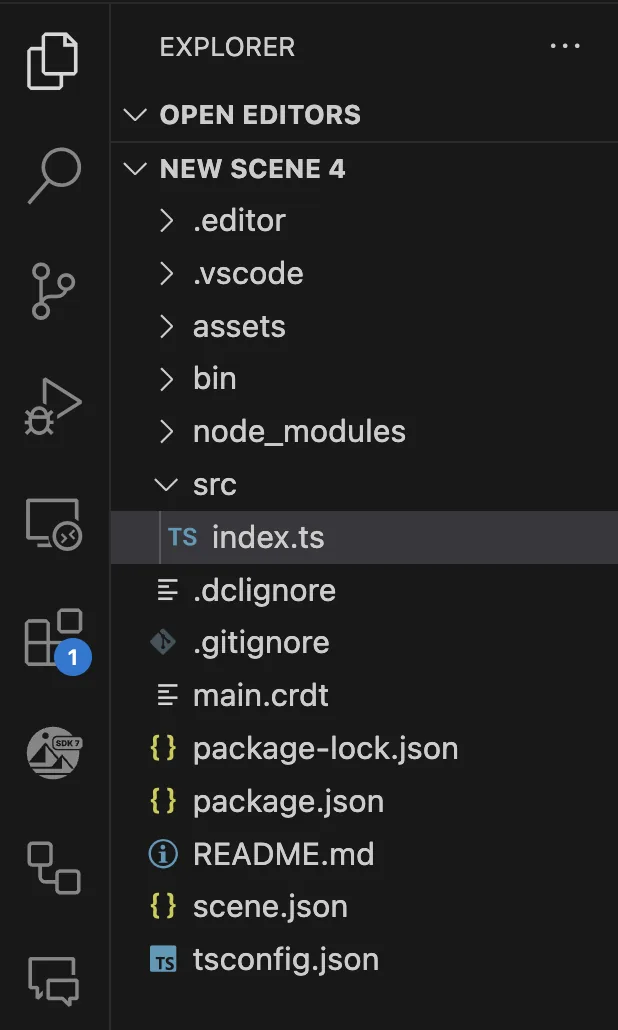
Add your custom code in the index.ts file under /src, inside the main() function. You can otherwise add custom code outside that function or create new .ts files inside the /src folder, but these must be somehow referenced inside the main() function of index.ts.
📔 Note: If you have VS Code or Cursor installed but the CODE button doesn't open it, it may be that VS Code is not properly configured on your machine to open via the command line. In most cases, this is handled as part of the default installation, but in case it's not, see these instructions from VS to enable VS Code from the command line.
If you have a preview window open running your scene, whenever you change the code in your files and save, the scene reloads automatically with your changes.
Using AI
The Creator Hub has a built-in AI Assistant that sees your open scene and edits it for you, without leaving the app. It is an experimental feature, turned off by default.
You can also leverage AI assistants like Cursor or Claude Code to help you write scene code. For example to use Cursor, do this:
- Open the Cursor AI assistant by clicking the AI button in the top-right of the screen
- There you can prompt the AI assistant to help you write code. Your prompts can include links to docs pages, paths to specific files in your project, or even images. You can also select a specific model to use from the dropdown.
To give your AI assistant Decentraland context, install the official Decentraland SDK Skills. These are ready-made instruction sets, maintained by the Decentraland Foundation, that teach your AI agent verified SDK7 patterns for every topic: scaffolding entire scenes, adding 3D models, multiplayer, deployment, and more.
npx skills add decentraland/sdk-skills
See Vibe Coding with AI for the full guide, including the complete list of available skills.
📔 Note: Older scene projects may contain a /dclcontext folder, downloaded by the deprecated npx sdk-commands get-context-files command. That context is no longer maintained and is superseded by the SDK Skills. You can safely delete the folder.
Version control
We recommend that you create a repo for your project on GitHub, and use it to keep track of your project's versions and to work collaboratively with others.
If you're not familiar with how to do this, see Quickstart for repositories, or use the GitHub desktop application for a simpler UI-based flow.
📔 Note: Upload the entire project folder to a GitHub repo, but make sure the /node_modules or /bin folders and the package-lock.json file are all included in the .gitignore file, to avoid syncing them. This should be the case if you configure the repo to be of type node. These files are all auto-generated, and the content may differ for different machines.
See also
- Vibe Coding with AI: build scenes by describing what you want to an AI assistant.
- Smart items - Basics
- Smart items - Advanced
- States and conditions
- Making any item smart
- SDK Quick start: follow this mini tutorial for a quick crash course.
- Development workflow: read this to understand scene creation from end to end.
- Examples: dive right into working example scenes.