'/%3e%3cpath%20fill-rule='evenodd'%20clip-rule='evenodd'%20d='M18%2080.9996C25.515%2086.6471%2034.875%2089.9996%2045%2089.9996C55.125%2089.9996%2064.485%2086.6471%2072%2080.9996H18Z'%20fill='%23FF2D55'/%3e%3cpath%20fill-rule='evenodd'%20clip-rule='evenodd'%20d='M9.00008%2071.9996C11.5651%2075.3971%2014.6026%2078.4346%2018.0001%2080.9996H72C75.3975%2078.4346%2078.435%2075.3971%2081%2071.9996H9.00008Z'%20fill='%23FFA25A'/%3e%3cpath%20fill-rule='evenodd'%20clip-rule='evenodd'%20d='M60.3675%2062.9997H3.75757C5.15257%2066.2172%206.93007%2069.2322%209.00006%2071.9997H60.39V62.9997H60.3675Z'%20fill='%23FFC95B'/%3e%3cpath%20fill-rule='evenodd'%20clip-rule='evenodd'%20d='M31.8826%2029.2496V62.9996H60.0075L31.8826%2029.2496Z'%20fill='url(%23paint1_linear_1_49380)'/%3e%3cpath%20fill-rule='evenodd'%20clip-rule='evenodd'%20d='M3.75757%2062.9997H31.8826V29.2497L3.75757%2062.9997Z'%20fill='white'/%3e%3cpath%20fill-rule='evenodd'%20clip-rule='evenodd'%20d='M60.3675%2047.25V72H81L60.3675%2047.25Z'%20fill='url(%23paint2_linear_1_49380)'/%3e%3cpath%20fill-rule='evenodd'%20clip-rule='evenodd'%20d='M39.7574%2072H60.3674V47.25L39.7574%2072Z'%20fill='white'/%3e%3cpath%20fill-rule='evenodd'%20clip-rule='evenodd'%20d='M60.3675%2040.4997C66.5807%2040.4997%2071.6175%2035.4629%2071.6175%2029.2497C71.6175%2023.0365%2066.5807%2017.9997%2060.3675%2017.9997C54.1543%2017.9997%2049.1175%2023.0365%2049.1175%2029.2497C49.1175%2035.4629%2054.1543%2040.4997%2060.3675%2040.4997Z'%20fill='%23FFC95B'/%3e%3cpath%20fill-rule='evenodd'%20clip-rule='evenodd'%20d='M31.8824%2022.4997C34.989%2022.4997%2037.5074%2019.9813%2037.5074%2016.8747C37.5074%2013.7681%2034.989%2011.2497%2031.8824%2011.2497C28.7758%2011.2497%2026.2574%2013.7681%2026.2574%2016.8747C26.2574%2019.9813%2028.7758%2022.4997%2031.8824%2022.4997Z'%20fill='%23FFC95B'/%3e%3cdefs%3e%3clinearGradient%20id='paint0_linear_1_49380'%20x1='45'%20y1='-18.6396'%20x2='-18.6396'%20y2='45'%20gradientUnits='userSpaceOnUse'%3e%3cstop%20stop-color='%23FF2D55'/%3e%3cstop%20offset='1'%20stop-color='%23FFBC5B'/%3e%3c/linearGradient%3e%3clinearGradient%20id='paint1_linear_1_49380'%20x1='31.8731'%20y1='29.2497'%20x2='31.8731'%20y2='62.9996'%20gradientUnits='userSpaceOnUse'%3e%3cstop%20stop-color='%23A524B3'/%3e%3cstop%20offset='1'%20stop-color='%23FF2D55'/%3e%3c/linearGradient%3e%3clinearGradient%20id='paint2_linear_1_49380'%20x1='60.3605'%20y1='47.25'%20x2='60.3605'%20y2='72'%20gradientUnits='userSpaceOnUse'%3e%3cstop%20stop-color='%23A524B3'/%3e%3cstop%20offset='1'%20stop-color='%23FF2D55'/%3e%3c/linearGradient%3e%3c/defs%3e%3c/svg%3e)
Sounds
Learn how to add sounds to your scene.
Sound is a great way to provide feedback to player actions and events, background sounds can also give your scene more context and improve the player's immersion into it.
📔 Note: Keep in mind that sounds are only heard by players who are standing within the parcels that make up the scene where the sound was generated, even if they would otherwise be in hearing range. Players can also chose to turn off all sounds on their settings.
Supported sound formats vary depending on the browser, but it's recommended to use .mp3.
.wav files are also supported but not generally recommended as they are significantly heavier.
Play sounds
The easiest way to play a sound is to add an Audio Source component visually on the Scene Editor in Creator Hub and set it to Start Playing and Loop. See Add Components.
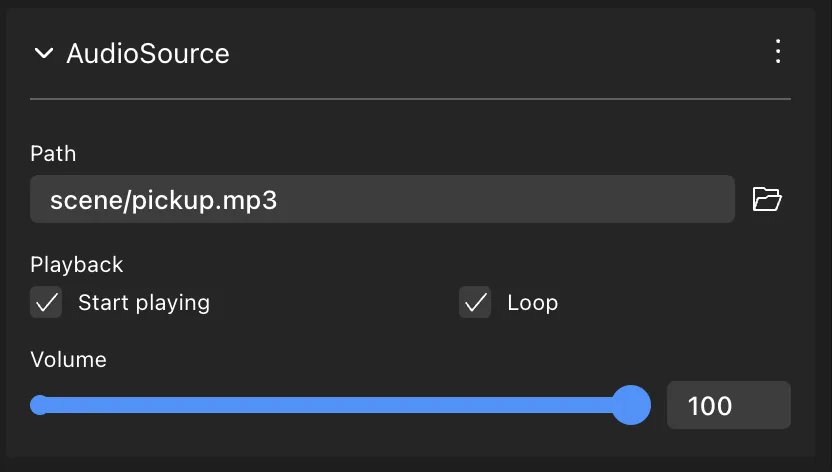
You can also trigger the playing of a sound in a no-code way via Actions, see Make any item smart.
To play a sound via code, use the AudioSource.playSound function.
// Create entity
const sourceEntity = engine.addEntity()

// Play sound
AudioSource.playSound(sourceEntity, 'assets/sounds/sound-effect.mp3')
The sound file must be inside the project folder. In the example above, the audio file is located in an assets/sounds folder, which is located at root level of the scene project folder.
📔 Note: The AudioSource component must be imported via
import { AudioSource } from "@dcl/sdk/ecs"
See Imports for how to handle these easily.
The AudioSource.playSound() function takes the following arguments:
entity: On what entity to apply the sound. The sound will be heard from this entity's position, meaning it gets louder as the player approaches it.src: The location of the sound file within your project.
💡 Tip: For more clarity, we recommend keeping your sound files separate in a assets/sounds folder inside your scene.
resetCursor: (optional) If true, the sound always starts from the beginning. Otherwise it continues from the current cursor position. Useful for pausing and resuming.
Another way to play sounds is to manually create an AudioSource component on an entity. Use this approach to have more control over the sound, for example to make it loop or set the volume.
// Create entity
const sourceEntity = engine.addEntity()

// Create AudioSource component
AudioSource.create(sourceEntity, {
    audioClipUrl: 'sounds/sound-effect.mp3',
    loop: true,
    playing: true,
})
The following properties can be set:
audioClipUrl: The location of the sound file within your project.playing: If true, the sound starts playing. You can create a sound withplayingset to false, and then set it to true at a later time.volume: (optional) The volume of the sound file. 1 by default, which is full volume.pitch: (optional) Modify the pitch of a sound. 1 is the default, make it lower for a deeper sound and higher for a higher pitch sound.
💡 Tip: To prevent a sound effect from becoming too repetitive during a game, it's useful to randomize some slight variations to the sound's pitch every time it plays.
currentTime: (optional) 0 by default. Set this value to avoid starting from the beginning of the sound file.
Each entity can only have a single AudioSource component, that can only play a single clip at a time. This limitation can be easily overcome by modifying the audio source at the time of playing a new sound, or by including multiple invisible child entities, each with their own sound.
📔 Note: Sounds are played on each player's local instance. Other nearby players won't hear the same sounds unless their local scene explicitly plays them too.
Pre Loading a Sound
If an entity uses a sound, but is not played immediately at scene runtime, it might take some time to download. It can be available at scene runtime by using the AssetLoad component.
import { AssetLoad } from "@dcl/sdk/ecs"

AssetLoad.create(engine.RootEntity, {
  assets: [
    "assets/scene/bundle1/explosionSound.mp3",
  ],
})
For more information, check the Pre Load Resources documentation.
Stopping sounds
To stop an entity from playing its sound, use the AudioSource.stopSound() function. You only need to specify the entity, since each entity has a single AudioSource component, and each AudioSource component plays a single file at a time.
AudioSource.stopSound(sourceEntity)
Another way to stop a sound is to set the playing property to false.
// Create entity
const sourceEntity = engine.addEntity()

// Create AudioSource component
AudioSource.create(sourceEntity, {
    audioClipUrl: 'sounds/explosion.mp3',
    playing: true,
})

// Define a simple function
function stopSound(entity: Entity) {
    // fetch mutable version of audio source component
    const audioSource = AudioSource.getMutable(entity)

    // modify its playing value
    audioSource.playing = false
}

// call function
stopSound(sourceEntity)
Detect when a sound finishes
When a non-looping sound finishes playing on its own, the engine sets the playing property of the AudioSource component back to false. Your scene's code can read this value to know when the sound ended, for example to chain another sound or action right after it.
let wasPlaying = false

engine.addSystem(() => {
    const audio = AudioSource.get(sourceEntity)
    const isPlaying = audio.playing ?? false

    if (wasPlaying && !isPlaying) {
        console.log('sound finished playing')
        // react here: play another sound, advance a sequence, etc.
    }

    wasPlaying = isPlaying
})
📔 Note: When polling the component every frame, always read it with AudioSource.get() (read-only). Using AudioSource.getMutable() would mark the component as changed on every frame, causing unnecessary synchronization work.
The playing property is only flipped by the engine when the sound ends by itself. If the scene stops the sound explicitly (via AudioSource.stopSound() or by setting playing to false), that change comes from your own code, and looping sounds play until stopped, so they never flip the property on their own.
Alternatively, use audioEventsSystem.registerAudioEventsEntity to define a function that runs every time the playback state of the entity's audio changes, just like video events for videos. The function receives an event with a state field, using the MediaState enum.
import { engine, AudioSource, audioEventsSystem, MediaState } from '@dcl/sdk/ecs'

// ... Create sourceEntity with an AudioSource component ...

audioEventsSystem.registerAudioEventsEntity(sourceEntity, (audioEvent) => {
    switch (audioEvent.state) {
        case MediaState.MS_LOADING:
            console.log('audio event - sound is LOADING')
            break
        case MediaState.MS_READY:
            console.log('audio event - sound is READY (loaded, or finished playing)')
            break
        case MediaState.MS_PLAYING:
            console.log('audio event - sound started PLAYING')
            break
        case MediaState.MS_ERROR:
            console.log('audio event - sound ERROR (e.g. the file failed to load)')
            break
    }
})
A transition from MS_PLAYING to MS_READY means the sound stopped playing. The full MediaState enum also includes MS_NONE, MS_LOADING, MS_PAUSED, MS_BUFFERING, MS_SEEKING and MS_ERROR, and each event carries a timestamp of when the state change occurred. You can also query the latest reported state at any time with audioEventsSystem.getAudioState(entity), unregister the callback with audioEventsSystem.removeAudioEventsEntity(entity), or check whether an entity is registered with audioEventsSystem.hasAudioEventsEntity(entity). The same system also works for entities with an AudioStream component.
📔 Note: These features are only supported in the Desktop client.
Looping
To keep a sound playing in a continuous loop, set the loop field of the AudioSource component to true before you start playing it.
// Create entity
const sourceEntity = engine.addEntity()

// Create AudioSource component
AudioSource.create(sourceEntity, {
    audioClipUrl: 'sounds/sound-effect.mp3',
    playing: true,
    loop: true,
})
Looping sounds is especially useful for adding background music or other background sounds.
Set volume
You can set the volume property of the AudioSource component to change the volume of a sound.
The volume is expressed as a number from 0 to 1.
// Create entity
const sourceEntity = engine.addEntity()

// Create AudioSource component
AudioSource.create(sourceEntity, {
    audioClipUrl: 'sounds/sound-effect.mp3',
    playing: true,
    volume: 0.5,
})
📔 Note: Of course, the volume of a sound is also affected by the distance of the player from the audio source. As the player walks away, the volume will be lower.
Global sounds
By default, all sounds from an AudioSource are positional. This means they appear to generate from the position of the Transform component, and will sound louder as the player walks closer. But you can also configure a sound to be global, so that the volume is constant, no matter where the player is standing. This is ideal for using on background music, notification sounds, and other non-positional sound.
📔 Note: Global Sounds are a feature that's only supported in the DCL 2.0 desktop client.
To make a sound global, set the global property to true.
AudioSource.create(sourceEntity, {
    audioClipUrl: 'sounds/music.mp3',
    playing: true,
    global: true,
})
Play a segment of a sound
To play a segment of a longer sound file, use the playSoundSegment() in the SDK Utils library. See SDK7 Utils.
You can also achieve this by explicitly set the currentTime property on an AudioSource component, and then stopping it after waiting for a period of time.
Audio streaming
See Audio streaming to learn how you can play a live audio stream from an external source.
Audio analysis
See Audio analysis to learn how to read real-time amplitude and frequency data from an AudioSource and drive reactive visuals from it, like cubes that pulse with the bass or equalizer-style bar visualizers.