'/%3e%3cpath%20fill-rule='evenodd'%20clip-rule='evenodd'%20d='M18%2080.9996C25.515%2086.6471%2034.875%2089.9996%2045%2089.9996C55.125%2089.9996%2064.485%2086.6471%2072%2080.9996H18Z'%20fill='%23FF2D55'/%3e%3cpath%20fill-rule='evenodd'%20clip-rule='evenodd'%20d='M9.00008%2071.9996C11.5651%2075.3971%2014.6026%2078.4346%2018.0001%2080.9996H72C75.3975%2078.4346%2078.435%2075.3971%2081%2071.9996H9.00008Z'%20fill='%23FFA25A'/%3e%3cpath%20fill-rule='evenodd'%20clip-rule='evenodd'%20d='M60.3675%2062.9997H3.75757C5.15257%2066.2172%206.93007%2069.2322%209.00006%2071.9997H60.39V62.9997H60.3675Z'%20fill='%23FFC95B'/%3e%3cpath%20fill-rule='evenodd'%20clip-rule='evenodd'%20d='M31.8826%2029.2496V62.9996H60.0075L31.8826%2029.2496Z'%20fill='url(%23paint1_linear_1_49380)'/%3e%3cpath%20fill-rule='evenodd'%20clip-rule='evenodd'%20d='M3.75757%2062.9997H31.8826V29.2497L3.75757%2062.9997Z'%20fill='white'/%3e%3cpath%20fill-rule='evenodd'%20clip-rule='evenodd'%20d='M60.3675%2047.25V72H81L60.3675%2047.25Z'%20fill='url(%23paint2_linear_1_49380)'/%3e%3cpath%20fill-rule='evenodd'%20clip-rule='evenodd'%20d='M39.7574%2072H60.3674V47.25L39.7574%2072Z'%20fill='white'/%3e%3cpath%20fill-rule='evenodd'%20clip-rule='evenodd'%20d='M60.3675%2040.4997C66.5807%2040.4997%2071.6175%2035.4629%2071.6175%2029.2497C71.6175%2023.0365%2066.5807%2017.9997%2060.3675%2017.9997C54.1543%2017.9997%2049.1175%2023.0365%2049.1175%2029.2497C49.1175%2035.4629%2054.1543%2040.4997%2060.3675%2040.4997Z'%20fill='%23FFC95B'/%3e%3cpath%20fill-rule='evenodd'%20clip-rule='evenodd'%20d='M31.8824%2022.4997C34.989%2022.4997%2037.5074%2019.9813%2037.5074%2016.8747C37.5074%2013.7681%2034.989%2011.2497%2031.8824%2011.2497C28.7758%2011.2497%2026.2574%2013.7681%2026.2574%2016.8747C26.2574%2019.9813%2028.7758%2022.4997%2031.8824%2022.4997Z'%20fill='%23FFC95B'/%3e%3cdefs%3e%3clinearGradient%20id='paint0_linear_1_49380'%20x1='45'%20y1='-18.6396'%20x2='-18.6396'%20y2='45'%20gradientUnits='userSpaceOnUse'%3e%3cstop%20stop-color='%23FF2D55'/%3e%3cstop%20offset='1'%20stop-color='%23FFBC5B'/%3e%3c/linearGradient%3e%3clinearGradient%20id='paint1_linear_1_49380'%20x1='31.8731'%20y1='29.2497'%20x2='31.8731'%20y2='62.9996'%20gradientUnits='userSpaceOnUse'%3e%3cstop%20stop-color='%23A524B3'/%3e%3cstop%20offset='1'%20stop-color='%23FF2D55'/%3e%3c/linearGradient%3e%3clinearGradient%20id='paint2_linear_1_49380'%20x1='60.3605'%20y1='47.25'%20x2='60.3605'%20y2='72'%20gradientUnits='userSpaceOnUse'%3e%3cstop%20stop-color='%23A524B3'/%3e%3cstop%20offset='1'%20stop-color='%23FF2D55'/%3e%3c/linearGradient%3e%3c/defs%3e%3c/svg%3e)
Components
Understand how an item's components work
Select an item by clicking on it on the canvas or on the entity tree. You'll then see its components displayed on the properties panel, on the right of the screen. Different items have different components that each display specific settings.
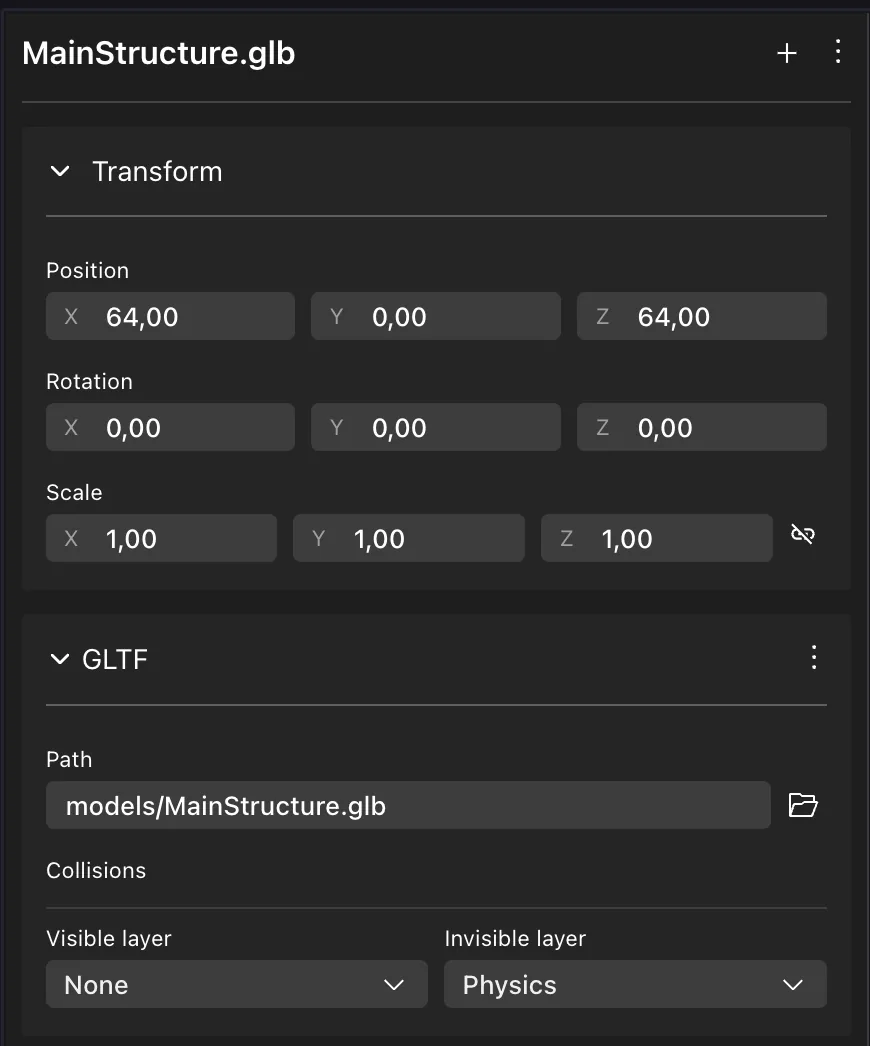
Most non-interactive items have the following components:
- Transform: Sets the position, rotation, and scale of the item. If the item is a child of another item on the Entity Tree, these values are relative to those of the parent's.
- GLTF: What 3D model to load. It includes the local path to the file for this 3D model. It also includes some properties for configuring colliders on the model.
The items in your scene are all Entities. Everything in a scene is an Entity, they are the basic building blocks of scenes. Items are Entities that have at least a position and a visible shape.
Add components
To add Components to any Entity, click the + sign at the top of the properties tab and select the Component from the list. See Make any item smart
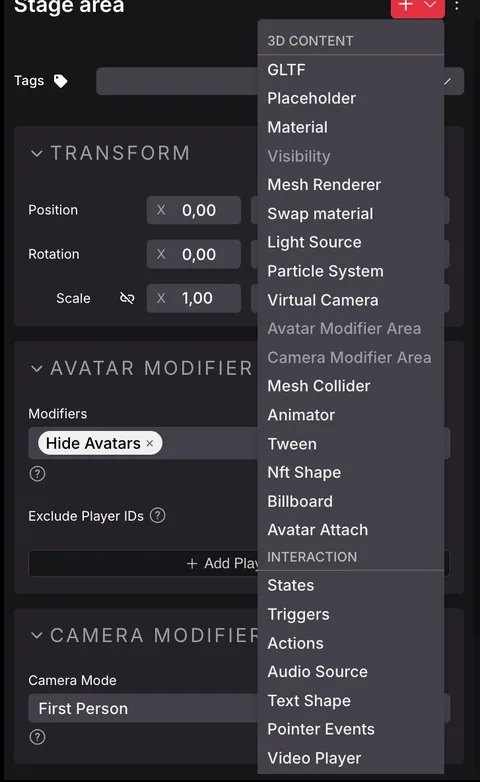
You can delete any Component from an Entity by clicking the three dots icon on its right, and selecting Delete Component.
Create an entity from scratch
To create a fresh new Entity, right click on the root Scene Entity in the Entity tree, or on any other Entity, and select Add Child
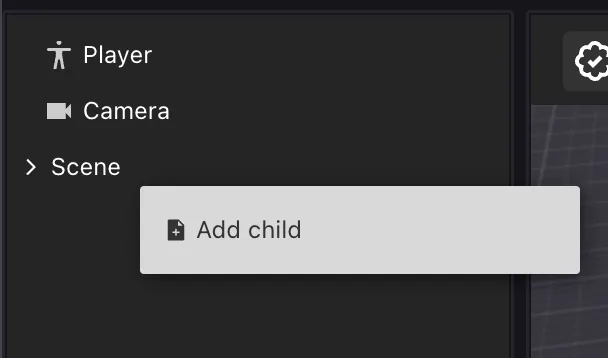
This creates an empty Entity with just a Transform Component. The new entity is a child of the parent entity you clicked on. You can then add any other Components you want to it to shape it into anything you desire.
Available components
The following Components can be added to any Entity via the Scene Editor UI:
Mesh Renderer: Gives the Entity a visible shape based on a primitive shape (cube, plane, cylinder, or sphere).
Mesh Collider: Gives the Entity an invisible collider geometry. This can block the player from walking through the item, and/or can make it clickable. See collider.
Material: Defines the color, texture, and other properties of an Entity that has a Mesh Renderer Component. See materials.
{% hint style="warning" %} 📔 Note: The item Must have a Mesh Renderer Component. It doesn't affect items with a GLTF visible shape. {% endhint %}
Visibility: Defines if an Entity is invisible.
Light Source: Adds a light to the Entity.
Swap Material: Swaps the material of an Entity that has a GLTF component. If the 3D model has multiple meshes, you can swap the material of each mesh individually.
Audio Source: Plays a sound from a sound file at the location of the Entity. See Sounds.
Text Shape: Displays text in the 3D space. See Text.
Pointer Events: Marks an Entity as clickable, displaying a hover-hint.
📔 Note: The Pointer Events Component only provides feedback. To perform actions when an Entity is interacted with, see Make any item smart
- Multiplayer: Shares any changes that happen to the Entity so that all players in the scene see it too. It can be configured to only share changes on certain components. See Serverless Multiplayer for more details.
- Animator: Controls the playback of animations on an Entity with a GLTF 3D model. See 3D model animations.
- Tween: Makes the Entity gradually move, rotate, or scale over a period of time. See Move entities.
- Billboard: Makes the Entity always rotate to face the player. See Face the user.
- Avatar Attach: Attaches the Entity to the player's avatar, so it follows them around. See Attach an entity to an avatar.
- Video Player: Plays a video inside the scene, that can be displayed on the Entity via its Material. See Video playing.
- NFT Shape: Displays the image of an NFT inside a frame. See Display an NFT.
- Particle System: Emits particles from the Entity's location, for effects like smoke, fire or sparkles. See Particle systems.
- Virtual Camera: Defines a custom camera angle that the scene can switch the player's view to. See Camera.
- Avatar Modifier Area: Changes how avatars behave or appear for players inside a region centered on this entity. The entity's scale sets the size of the region. See Modifier Areas.
- Camera Modifier Area: Forces the player's camera into first or third person inside a region centered on this entity. The entity's scale sets the size of the region. See Modifier Areas.
- Script: Attaches a custom code module to the Entity, with parameters you can configure from the UI. See Script component.
📔 Note: Other components exist on the SDK that are currently only usable via code. You can also create your own Custom components via code, these won't have a UI representation, but can be added and edited via code.
See Combine with code for how to edit the code of your scene.
Also note that an Entity can only hold one of each Component. It's not possible to assign a second instance of a Component that already exists in the entity. For example, you can't add two Actions components to a same Entity.
Settings worth knowing
Most component fields map one to one onto the SDK page linked above. A few are easy to miss, or behave in a way that isn't obvious from the field name.
Audio Source
Pitch multiplies the playback speed and shifts the pitch with it. 1 plays the original sound, 2 plays it twice as fast (one octave up), 0.5 half as fast (one octave down). It must be greater than 0, and defaults to 1.
Video Player
- Playback Rate: same idea as Pitch, for video.
1is normal speed. Leave it empty for the default. - Start Position (seconds): where playback begins when the video starts. Leave it empty to start from the beginning.
- Spatial Audio: turn on Spatial to make the video's sound positional, so it fades as the player walks away. Spatial Distance then sets the range: the audio plays at full volume up to Min meters and fades to silence at Max meters. The defaults are 0 and 60.
With Spatial off, the audio plays at the same volume everywhere in the scene.
Text Shape
- Size: the width (W) and height (H) of the text box, in meters. Alignment and padding are measured against this box.
- Text Wrapping: breaks the text into new lines when it reaches the width set in Size. With it off, the text stays on one line.
Material
- Color Alpha: the opacity of the main Color, from 0 to 1. It has no effect while Transparency Mode is Opaque.
- Alpha test: the cutoff where a pixel becomes invisible. It only appears when Transparency Mode is Alpha test or Alpha test & blend, since those are the only modes that use it.
- None: color dropdowns now offer a None entry that clears the color, and the texture Type dropdown offers None to remove a texture.
Particle System
The Rotation section controls how particles are oriented and how they spin:
- Billboard: each particle always faces the camera. On by default. Turn it off for particles that should tumble freely in 3D.
- Face Travel Direction: each particle starts out pointing the way it's moving, like an arrow.
- Initial Rotation (deg): how each particle is rotated when it's born, per axis.
- Rotation Over Time (deg/sec): how fast it spins, per axis. Values are capped at 180 per axis.
When Use Texture is on, two more dropdowns appear:
- Wrap Mode: how the texture behaves past its edges. Clamp (the default) stretches the edge pixels, Repeat tiles it, Mirror tiles it with alternating flips.
- Filter Mode: how the texture is sampled. Bilinear (the default) is smooth, Point is pixelated and good for pixel art, Trilinear smooths across mipmap levels.
Tween
Tween Type offers five modes:
| Mode | What it does |
|---|---|
| Move Item, Rotate Item, Scale Item | Animate from a start value to an end value over the Duration. |
| Move Continuous | Keep moving in a fixed direction, forever, at a constant speed. |
| Rotate Continuous | Keep spinning around a fixed axis, forever, at a constant speed. |
The two continuous modes have no end value, so Start, End, Duration, Easing Function and Loop are hidden for them. Instead you get:
- Move Continuous: a Direction vector and a Speed (meters/sec). Use a direction of length 1 so the speed is exactly meters per second. A negative speed moves the opposite way.
- Rotate Continuous: a Rotation Axis (degrees) and a Speed (degrees/sec). Only the direction of the axis matters, not how large the angles are.
Switching Tween Type resets these values to sensible defaults for the new mode, because the numbers mean different things in each one.
The Playing checkbox (previously called "Auto start") decides whether the tween runs as soon as the scene loads. With it off, the tween is created paused at its start value and only runs once your code sets it to play.
💡 Tip: Some component properties can only be set from code. Editing an entity in the inspector no longer discards them, so you can set a value in your scene's code, then keep using the editor on that entity without losing it.
Smart items
Smart items can also include special components that Control the Entity's interactivity. These are typically:
- Actions: Lists all the possible actions the item can carry out.
- Triggers: Determines when the actions from the Actions component are carried out.
- States: Keeps track of the item's current state. The state can be used for conditional logic, to only trigger certain actions if the item is on certain state.
- Counter: Keeps track of a counter. The counter can be used for conditional logic, to only trigger certain actions if the counter's value is equal/greater/lower than a given value.
See Smart items advanced for more details.
About entities and components
Everything in a scene is an Entity. All the items and smart items in the scene are Entities.
All the traits of an Entity are determined by its components. They define what the Entity is, where it is, how it sounds, and how it behaves. For example, a Transform component stores the Entity's coordinates, rotation and scale. A MeshRenderer component gives the Entity a visible shape (like a cube or a sphere), and a Material component gives the Entity a color or texture.
The values on components can change over time. In the Scene Editor you configure the initial values for these components. But once your scene is running, the player's actions or the passage of time can change those values.
For example, a moving platform Smart Item has an initial position that you set via its Transform component, but after the actions of this item make it move, its Transform will hold different values.
See Entities and components for an in-depth look at this concept and how they're used by Decentraland scenes.